Harnesses and guardrails
Tame the wild AI models roaming freely

Imagine a one-armed bandit. No, not a highwayman with a missing limb, but a slot machine. You pull the lever, the winning 777 combination appears, and the computer runs exactly the command you need right now. But if the winning combination doesn't come up... anything could happen. For some reason, you decide to keep pulling the lever anyway, but you get the feeling you should somehow minimize the unwanted side effects.
That's how I picture AI models that can run arbitrary commands on your own machine, and although there are off-the-shelf solutions to keep them in check (such as Docker Sandboxes), we obviously have to build our own to dig a little deeper into how things work.
The agent
Pretty much every major provider has some kind of TUI called a harness or an agent (Codex, Claude Code, and the rest) with all the bells and whistles. I wanted something simpler, with as little magic as possible. I ended up going with Pi.
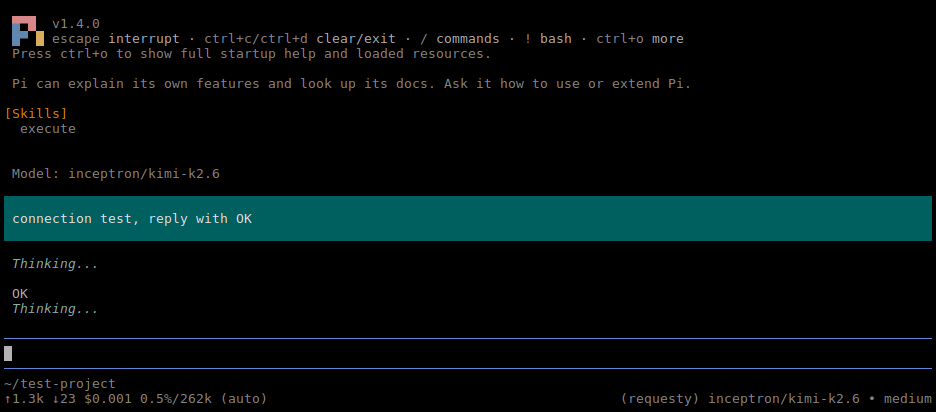
Isolation will be handled by Docker (or in our case, Podman). There's still room to play with the convenience vs. security slider here: we could run it in a separate virtual machine, but I leaned more toward convenience, hoping it would be secure enough for my use case. The goal is to minimize the negative consequences of potentially incorrect or unwanted commands from an operator-supervised model, not to contain a fully autonomous and potentially hostile agent.
The approach is the good old principle of least privilege. Only grant access to what's strictly necessary, and only as much as necessary:
- don't give it write access to the entire filesystem if it only needs to read a few files
- don't give it access to the entire network if it only needs to reach a predefined set of websites
- don't hand over all our environment variables
- don't let it access commands meant for our own use
The first step is to create a Dockerfile for Pi:
Dockerfile
FROM docker.io/library/node:24-alpine3.24

USER root

RUN apk add --no-cache bash curl fd git jq python3 ripgrep yq-python

USER node

RUN mkdir -p /home/node/src
WORKDIR /home/node/src

ARG PI_VERSION=1.4.0

RUN npm config set prefix "~/.local/" && \
    npm install -g --ignore-scripts @earendil-works/pi-coding-agent@${PI_VERSION}

ENV PATH="/home/node/.local/bin:$PATH"
Besides the application itself, the image includes a few project-independent commands that models like to use. In the system prompt, we can ask the model to let us know if a tool is missing, rather than trying to install it or work around it with other tricks. Sometimes it works, sometimes less so. I've run into a case where, despite my instructions, it started reimplementing a tool in C that it couldn't find, instead of stopping.
Then we build the image and add a command to our .profile (or a similar file) to make it easier to start:
$ podman build -f Dockerfile -t localhost/pi-harness:latest .
function pi {
  podman run \
    --rm \
    --tty \
    --interactive \
    --volume "$HOME/.config/pi:/home/node/.pi:z" \
    --volume "$PWD:/home/node/$(basename $PWD):z" \
    --workdir "/home/node/$(basename $PWD)" \
    --userns keep-id \
    --read-only \
    --read-only-tmpfs \
    --network none \
    --cap-drop ALL \
    --security-opt no-new-privileges:true \
    --cpus 1 \
    --memory 512m \
    --pids-limit 64 \
    --stop-timeout 5 \
    localhost/pi-harness:latest \
    pi
}
Pi gets its own configuration directory, along with the directory we're currently in, since we assume that's what we want to work on. We also use the current directory's name to get roughly the right chat history (directory name collisions can happen). Treat the contents of these directories as disposable, so make sure you have proper backups of anything dear to your heart.
Most of the filesystem is read-only, except for the volumes and a few temporary directories like /tmp. On top of that, we drop all privileges and limit resources too, so it's harder to bring the host machine to its knees.
Sometimes we need Pi for something unrelated to a project, or we don't want to share files with it. For that, I keep a separate pi-ns command. It starts Pi with the --no-session flag and gives it a random temporary directory to work in instead of the current directory.
This is all well and good so far, but it has one huge flaw. It can't reach any network, so the Pi application can't talk to the LLM provider's API either.
Caught in the net
You can decide whether to give the agent full Internet access or apply some kind of filtering. Let's look at how the latter could work. We'll need two networks:
$ podman network create --driver bridge --internal pi-internal
$ podman network create --driver bridge pi-external
The idea is that Pi only has access to the internal network, where it talks to a proxy that can reach the Internet through the external network. To do this, we need to change the --network option in Pi's podman run command from none to pi-internal to access the network, and add the --env http_proxy=http://proxy:3128 and --env https_proxy=http://proxy:3128 options to configure the proxy.
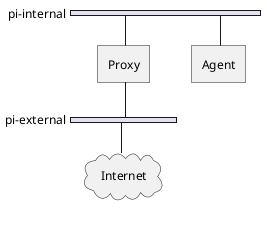
The proxy will be another Docker image running squid:
Dockerfile.proxy
FROM docker.io/library/alpine:3.24

RUN apk add --no-cache squid

COPY squid.conf /etc/squid/squid.conf

CMD ["squid", "-N"]
And the configuration file mentioned above could look something like this:
squid.conf
acl localnet src 10.0.0.0/8
acl safe_ports port 80 443
acl ssl_ports port 443

acl allowed_hosts dstdomain -n example.org

http_access deny !localnet
http_access deny !safe_ports
http_access deny CONNECT !ssl_ports
http_access deny manager
http_access deny to_localhost
http_access deny to_linklocal

http_access allow localnet allowed_hosts

http_access deny all

http_port 3128

cache deny all

logfile_rotate 0
cache_log stdio:/dev/stdout
access_log stdio:/dev/stdout
cache_store_log stdio:/dev/stdout
pid_filename /tmp/squid.pid
shutdown_lifetime 2 seconds
For this example, I've used a configuration that only allows access to sites on the allowed_hosts list, but we could also use the proxy just to log outgoing traffic.
Something worth keeping in mind is that this only lets us restrict who the model can communicate with, not what data gets sent from our machine to external providers.
We can start the proxy with a command similar to the one for Pi:
$ podman build -f Dockerfile.proxy -t localhost/pi-proxy:latest .
function pi-proxy {
  podman run \
    --rm \
    --user squid \
    --cap-drop ALL \
    --security-opt no-new-privileges:true \
    --cpus 1 \
    --memory 512m \
    --pids-limit 64 \
    --stop-timeout 5 \
    --network pi-internal \
    --network pi-external \
    --network-alias proxy \
    --read-only \
    --read-only-tmpfs \
    --replace \
    --detach \
    --name pi-proxy \
    localhost/pi-proxy:latest
}
At this point, Pi can talk to the provider's API, access the Internet, and see and modify our project's files. But what happens if it needs to work on a project written in PHP, for example?
Pi's Docker image doesn't have the right tools, and we might not want to install every possible version of every possible programming language in it.
The project environment
I'm working on the assumption that our projects also run in Docker, so there's already a container where we could run the right commands. The only question is how. My idea is similar to the proxy: an HTTP server acting as a kind of Remote Code Execution as a Service. It runs the commands we send in its own environment and returns their output.
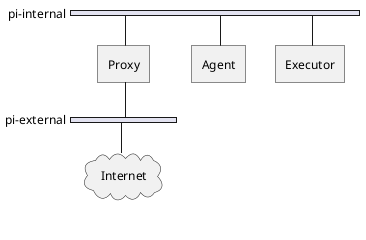
The project environment can use the internal network too
So we start a container that uses the same image as the project, is on Pi's internal network (or has its own per-project network, if we're running multiple projects at once and don't want every Pi to see every project environment), and runs a server that executes any command it receives from outside. What could go wrong?
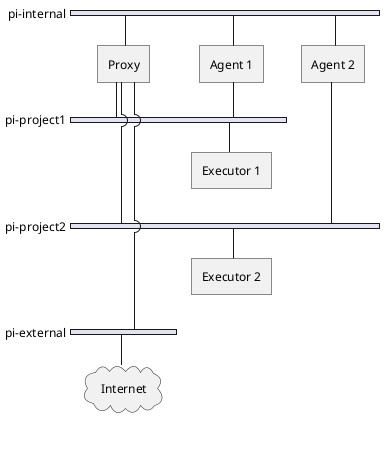
A separate network for each project, so agents can't see each other's projects
Two things protect us. One is that only something on the right network can submit commands (so don't expose this service to the host machine or the Internet, for example). The other is that we'll properly restrict the command-executing container too.
I'll skip the details of the project's Dockerfile, since it isn't particularly important. As for the Docker Compose configuration, it's quite slim as well:
docker-compose.yml
services:
  app:
    build: .
    userns_mode: keep-id
    volumes:
      - .:/home/app/src:z
    command: ["/bin/true"]
Our own Pi-related configuration can go in this file if it doesn't bother anyone else working on the project, but if we want to keep it to ourselves, it's worth putting it in the override file:
docker-compose.override.yml
volumes:
  pi-shared:
    external: true
networks:
  pi-internal:
    external: true
services:
  executor:
    build: .
    userns_mode: keep-id
    volumes:
      - .:/home/app/src:z
      - pi-shared:/home/app/shared:z,ro
    command: ["/home/app/shared/executor"]
    cap_drop:
      - ALL
    security_opt:
      - no-new-privileges:true
    read_only: true
    cpus: 2
    mem_limit: 2048m
    pids_limit: 128
    stop_grace_period: 5s
    environment:
      http_proxy: http://proxy:3128
      https_proxy: http://proxy:3128
    networks:
      pi-internal:
        aliases: ["test-project"]
Part of the configuration is the same as what the app uses, but with the restrictions we used when launching Pi added on top. This container can only access the Internet through the proxy as well. Without these restrictions, there would be a weaker link among the containers the model can access and it can possibly exploit this - intentionally or otherwise.
Two more things are worth mentioning. The first is aliases in the network section, where we have to give a unique name. We'll use this name later to reach the project server, for example: http://test-project:8080.
The other is the extra, read-only Docker volume (pi-shared). This is where our command-executing server will be available. It's worth choosing something portable, such as a statically linked Go binary, so we can use it in as many projects as possible.
The server's code isn't particularly interesting, a suitable model can generate it in no time. It's a very simple HTTP server with a single POST endpoint (/execute), which runs a command received as JSON and sends its output back in the response. I build the binary in a Dockerfile, then copy it into the right volume:
$ podman volume create pi-shared
$ podman build -f Dockerfile.executor -t localhost/pi-executor:latest .
$ podman run --rm -v pi-shared:/shared localhost/pi-executor:latest sh -c 'cp /build/executor /shared/executor'
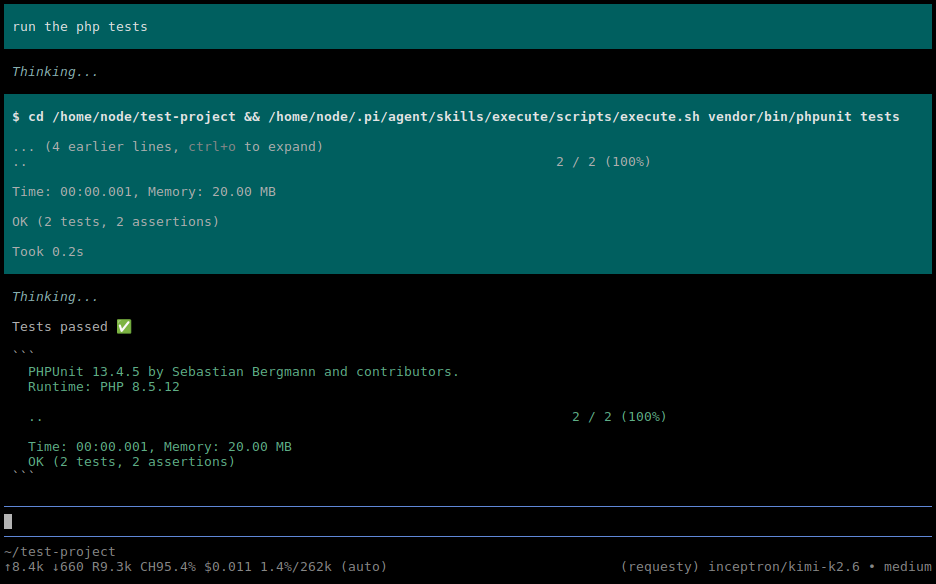
All that's left is to tell Pi how to use this server. And in this case, we really can just tell it. For example, we could send it off to create a skill that runs project-specific commands (running tests, installing project dependencies, and so on) through the server running in the executor service, which can be found in the project's docker-compose.override.yml file. The server's name is specified as a network alias, and it always runs on port 8080.
I gave it a little less room to maneuver. I wrote the shell script it needs to call by hand, and only had it write the skill's text:
execute.sh
#!/bin/sh

if ! [ -f 'docker-compose.override.yml' ]; then
    echo 'Cannot run command, application environment is not configured.'
    exit 255
fi

host_name=$(yq -r '.services.executor.networks["pi-internal"].aliases[0]' docker-compose.override.yml 2>/dev/null)
if [ "$host_name" = "null" ]; then
    echo 'Cannot run command, application environment is not configured.'
    exit 255
fi

json=$(jq -nc '$ARGS.positional' --args -- "$@")

response=$(http_proxy= curl -s --json "{\"command\":$json}" "http://$host_name:8080/execute")
if [ $? -gt 0 ]; then
    echo 'Application environment is not running, notify the operator.'
    exit 255
fi

exitCode=$(echo "$response" | jq -r .exitCode)
output=$(echo "$response" | jq -r .output)

echo "$output"
exit $exitCode
We assume (or can explicitly require) that this command will be called from the project directory, so we can read the network alias from the docker-compose.override.yml file, put together the appropriate curl command, and present the response as if it were the shell script's own output. It's also worth noting that we need to disable the globally configured proxy for this curl call, since we want to talk to something on Pi's internal network, not something on the Internet.
Closing down
After all this ordeal, we end up with a system that's about as easy to use as running the agent directly under our own user account. From the project directory, we just start the project's containers, run the pi-proxy and pi commands, and get to work. Of course we'll find some missing commands or websites to add to the proxy configuration along the way, or perhaps we'll have to write an entirely new service on Pi's internal network that provides restricted access to something. But somewhere, we have to pay the price of security (or the lack of it).
The danger is still there, though. It just has a smaller blast radius. We still need to pay attention to what data we share with the model (a .env file with production secrets left lying around in the project directory), and it's also worth keeping track of the changes the model makes within the project (since running them with our own permissions could cause unexpected side effects). But at least we're no longer in a situation where Claude Code (running under our own user account) can use the gcloud command intended for our personal use to delete our entire production infrastructure if the idea happened to cross its mind.